

Nicolas VACCARO, Cloud Engineer and Azure expert, explains how to successfully integrate a local server into Azure using Azure Arc.
Today, companies are increasingly faced with the complexity of managing multi-cloud infrastructures.
Multicloud, or the simultaneous use of services and resources from multiple cloud providers, has become an essential reality in order to meet the evolving needs and specific requirements of each workload.
However, with the diversity of cloud providers and environments, managing these resources in a unified and consistent manner becomes a significant challenge.
This is where Azure Arc, a solution provided by Microsoftthat offers a simplified approach to multi-cloud and on-premises management.
What is Azure Arc?
Azure Arc simplifies governance and management by offering a multi-cloud and on-premises management platform.
It allows:
- manage your entire environment through a single interface
- manage virtual machines, Kubernetes clusters, and databases as if they were running in Azure
- use Azure management services and features (for example, through Azure Arc, you can "audit" your on-premises infrastructure with Azure Monitor, which will install an agent on your servers and report the audit in graph form in Azure; security and compliance services can also be used)
- to use traditional ITOps, while introducing DevOps practices
Today, with Azure Arc, you can manage resources hosted outside of Azure:
- Virtual/physical machine running Windows or Linux
- Kubernetes clusters
- Data services
- SQL Server
Let's explore the process of integrating a local server into Azure.
The Azure ecosystem needed to integrate your infrastructure
You need the following Azure roles for different aspects of connected machine management:
- To onboard machines, you must have the Azure Connected Machine Onboarding or Contributorrole forthe resource group in which you manage the servers.
- To read, modify, and delete a machine, you must be a member of theAzure Connected Machine Resource Administrator role for the resource group.
- To select a resource group from the dropdown list when using the "Generate script" method, you will also need the reader role for that resource group, or another role that includes "Read" access.
How to prepare for your integration?
As a reminder, our first scenario involves deploying the Azure Arc agent on a virtual machine available in my on-premises infrastructure.
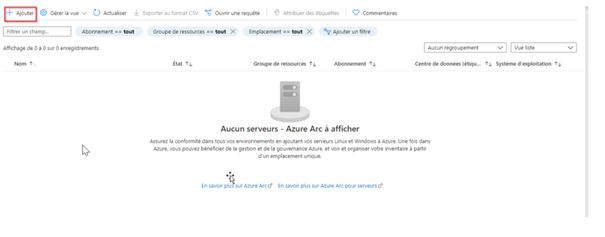
Once on the Azure portal, go to Azure Arc | Servers, as shown in the example below:

Click on "Add."
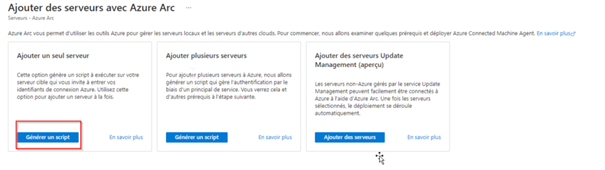
For a first installation, install the agent on a single local server:
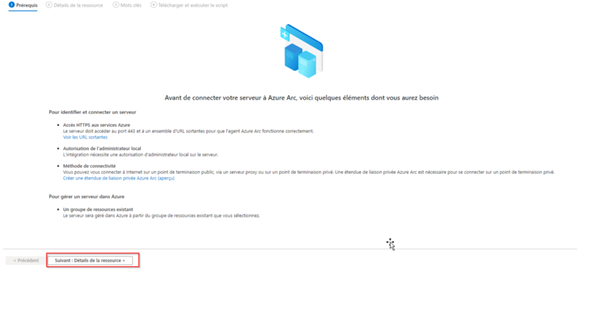
Azure Arc then indicates the prerequisites required for successful deployment:
Fill in the various fields: subscription, resource group, operating system
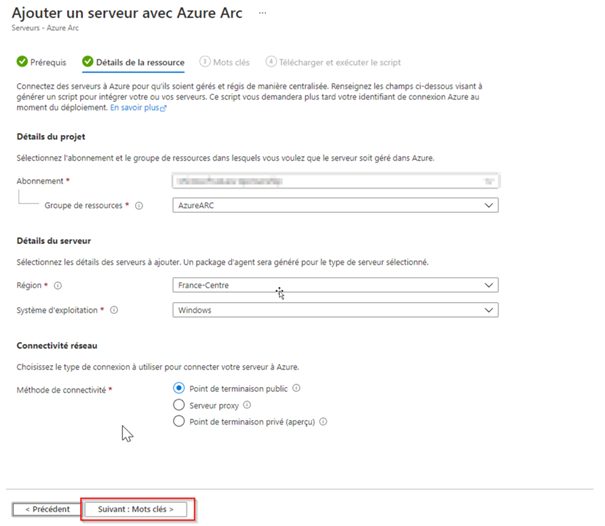
Regarding network connectivity, you have three options:
- Public endpoint (standard internet configuration)
- Proxy Server (configuration used when a proxy server is present)
- Private endpoint ( configuration used in the case of a VPN connection, etc.)
In our case, we use the public endpoint connection.
Enter different values
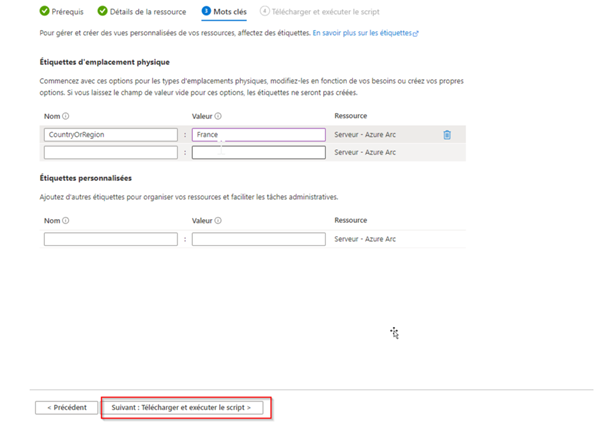
Download the script to installthe agent:

Downloading and installing the Azure ARC agent:
On the virtual machine, run the script using the PowerShell command :

Once the script is launched, the agent installation is performed:

After a few minutes of waiting, a web page opens and an authentication request is prompted. Please note that the following rights are required to perform the integration:
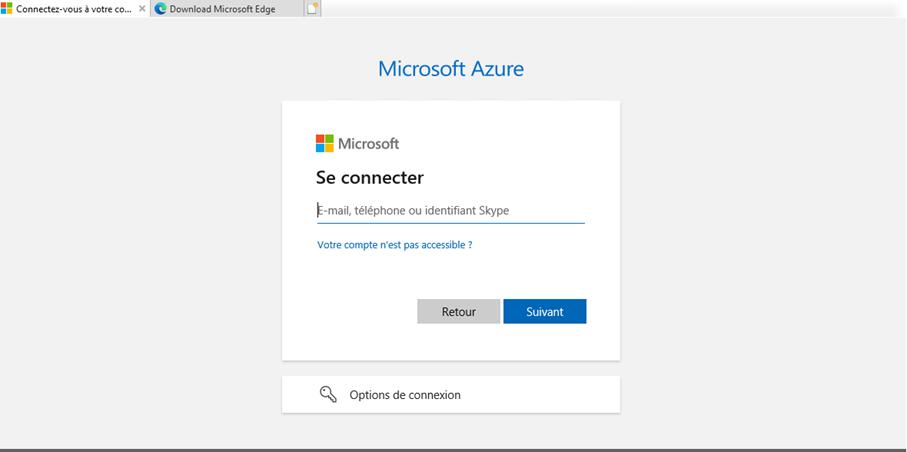
Then follow the various steps to verify your profile:
Once this action is complete, your machine is connected to Azure through Azure Arc:

On the Azure portal, the machine connection is clearly visible:

Potential issues
Firewall issues:
- Symptoms: The firewall is blocking communication between the agent and Azure.
- Solution: Add appropriate firewall rules to allow communication between the machine and Azure services. Ensure that local firewall rules and network security group rules are configured correctly.
Proxy configuration issues:
- Symptoms: If you are using a proxy server, configuration issues may arise.
- Solution: Check the proxy server settings to ensure they are correct. Ensure that the proxy server allows communication with Azure services.
User Rights Issues:
- Symptoms: Errors related to insufficient permissions during integration.
- Solution: Ensure that the user has the necessary rights, including the roles Azure Connected Machine Onboarding, Contributor, and Azure Connected Machine Resource Administrator.
You now know how to install the Azure ARC agent on a local machine.
This will be visible as a resource in Azure and can be "used" by other services in Azure, such as Azure Sentinel, Microsoft Defender for Cloud, etc.
Nicolas VACCARO
Cloud Engineer