Today, we're going to talk about Azure Virtual Desktop, encryption, and security.
And, most importantly, we will see how to automate all of this to save time while adhering to Microsoft best practices.
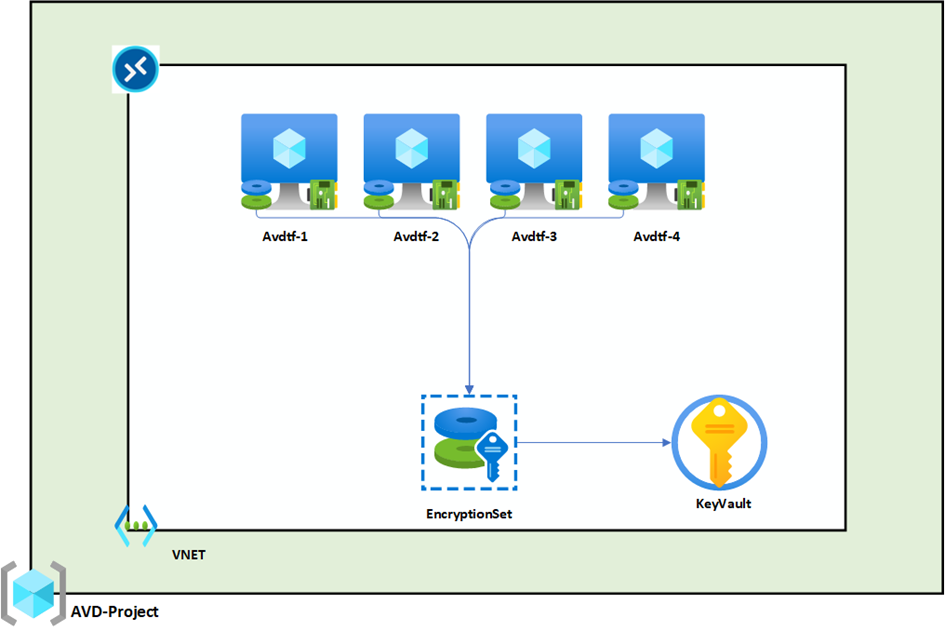
Here is the architecture diagram that we will implement. The idea is simple: create a resource group that will contain the compute and disk encryption (we will use CMK). A Key Vault will store the secrets, with a rotation set up every 30 days to ensure better security. Another resource group will be dedicated to configuring Azure Virtual Desktop.
What is CMK – Customer Managed Key?
Customer-managed keys(CMKs) are keys that customers can read, create, delete, update, or manage themselves. These keys are stored in a Key Vault or hardware security module (HSM) owned by the customer. Bring Your Own Key(BYOK) is a scenario in which a customer imports their own keys from an external storage location into an Azure key management service.
More information here:https://learn.microsoft.com/en-us/azure/security/fundamentals/key-management
Terraform script
Now that you know a little more, let's move on to the Terraform (TF) script, which we will analyze step by step.
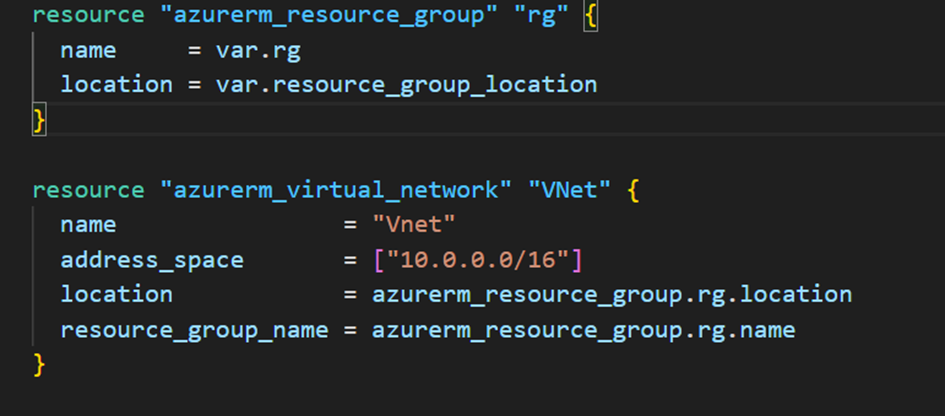
First, we willcreate a resource groupand aVNetwith an address space of 10.0.0.0/16:
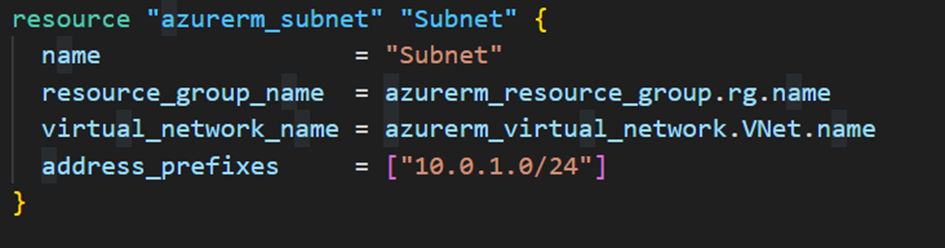
As well as asubnetwork (Subnet):
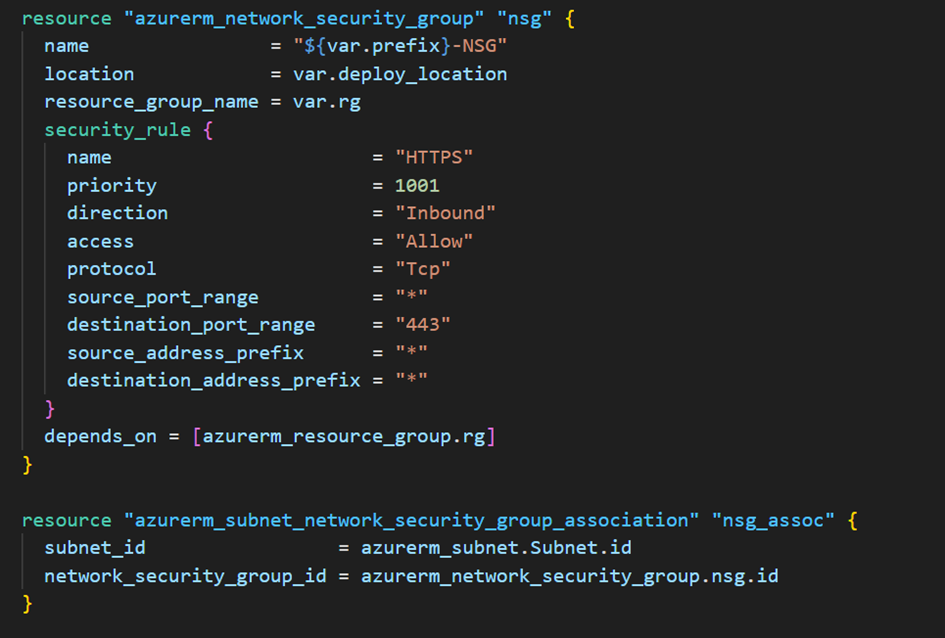
We will alsocreate aNetwork Security Group (NSG) that allows port 443 (HTTPS) to connect to the AVD VM, and associate it with the previously created subnet:
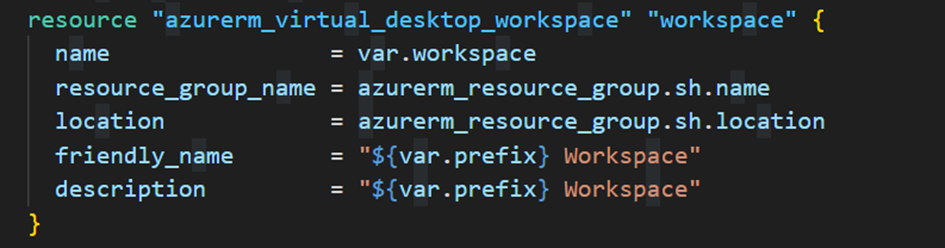
Once this step is complete, we will create ourAzure Virtual Desktop. First, we will create the workspace:
Next, we create theHost Pool:
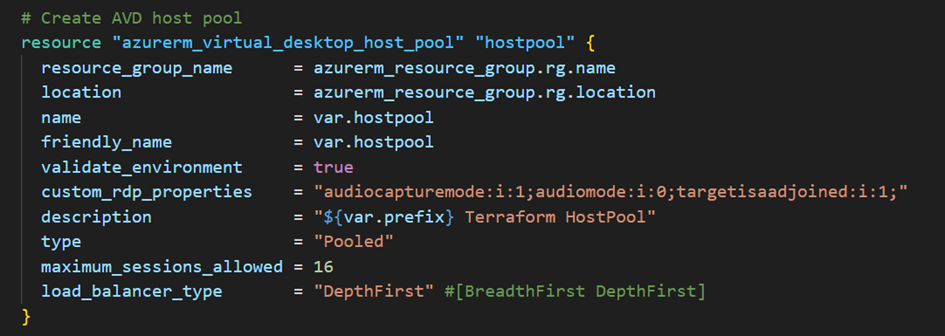
Tip: I encountered a connection error between my RDWeb desktop and AVD. The solution is to add the following line to custom_rdp_properties: ;targetisaadjoined:i:1;.
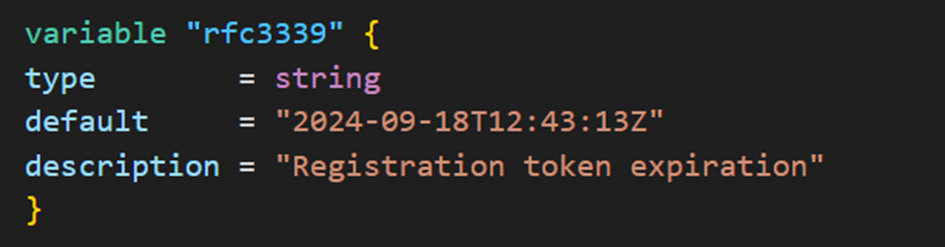
Once the host pool has been created, we add a line for registering the virtual machines that we are going to create:

The expiration_dateis a value that must be entered to authorize the registration of machines in the AVD host pool. You will find it in the appropriate variable.
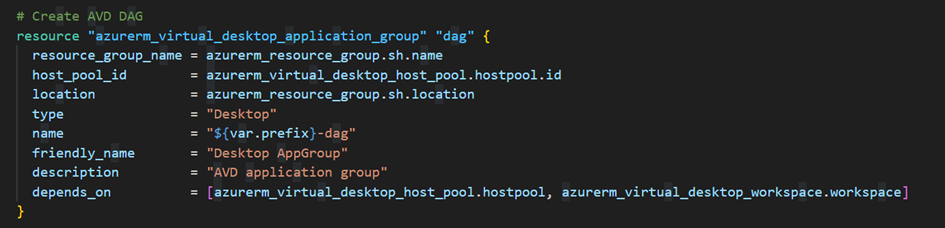
Next, we will create theDAG (Desktop Application Group), which is where applications can be inserted to be available in AVD:
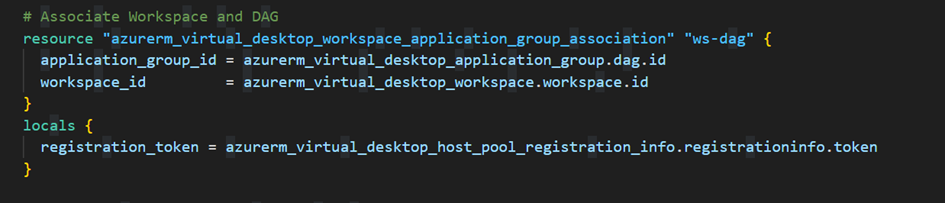
Of course, we will associate ourWorkspace with the DAG:
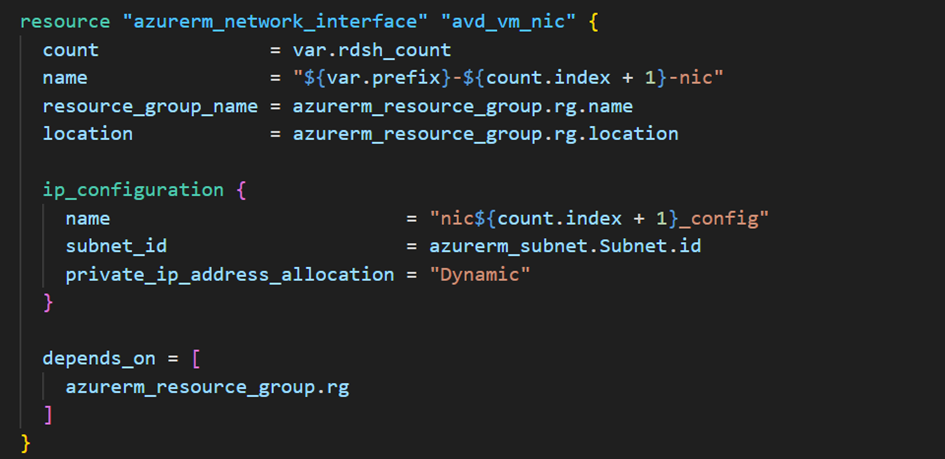
That's it, the Azure Virtual Desktop part is complete. We will now create thevirtual machinesandnetwork interfaces:
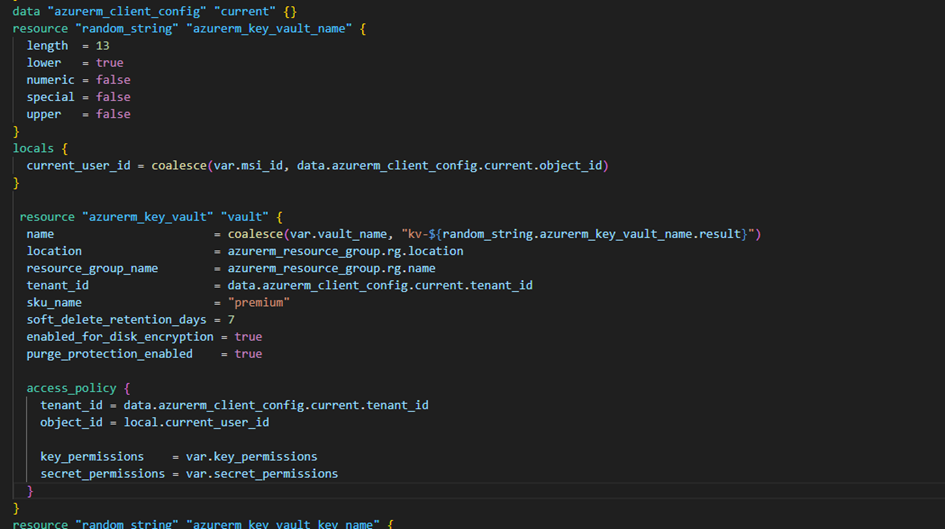
Once our network interfaces have been created, we will create aKey Vaultwith a random name and the appropriate permissions to be able to create one or more keys and secrets. We will also enable soft delete for 7 days and finally, encryption, so that the Key Vault can store the disk encryption key and the secrets of the local administrator accounts:
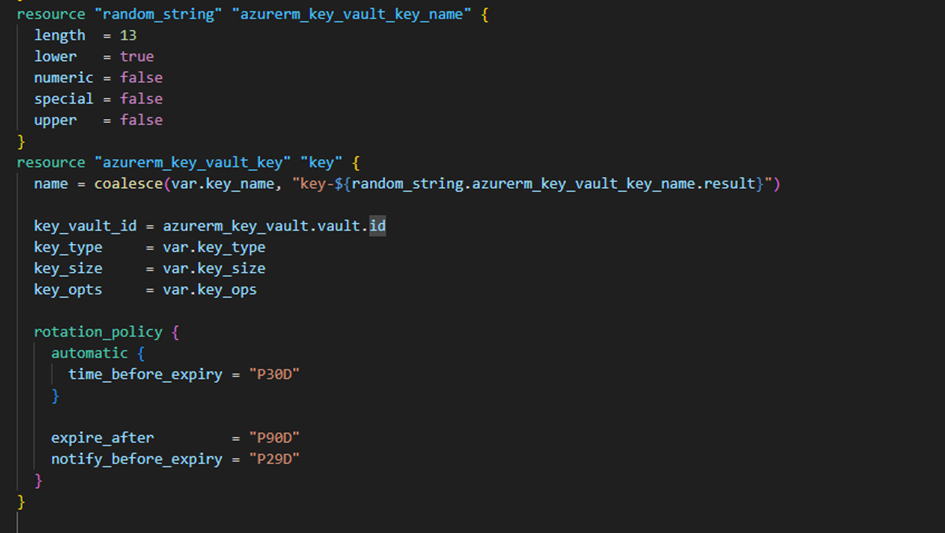
Next, we will create arandom keywith a rotation approximately every 30 days:
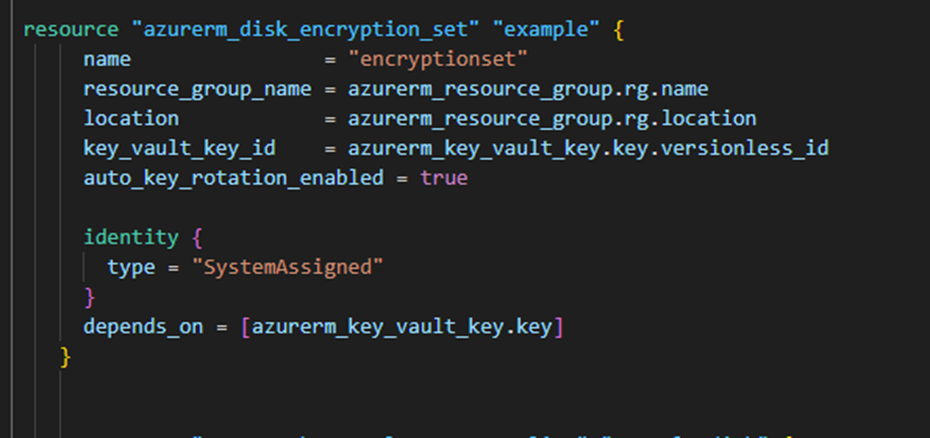
Finally, we create thedisk encryption set:
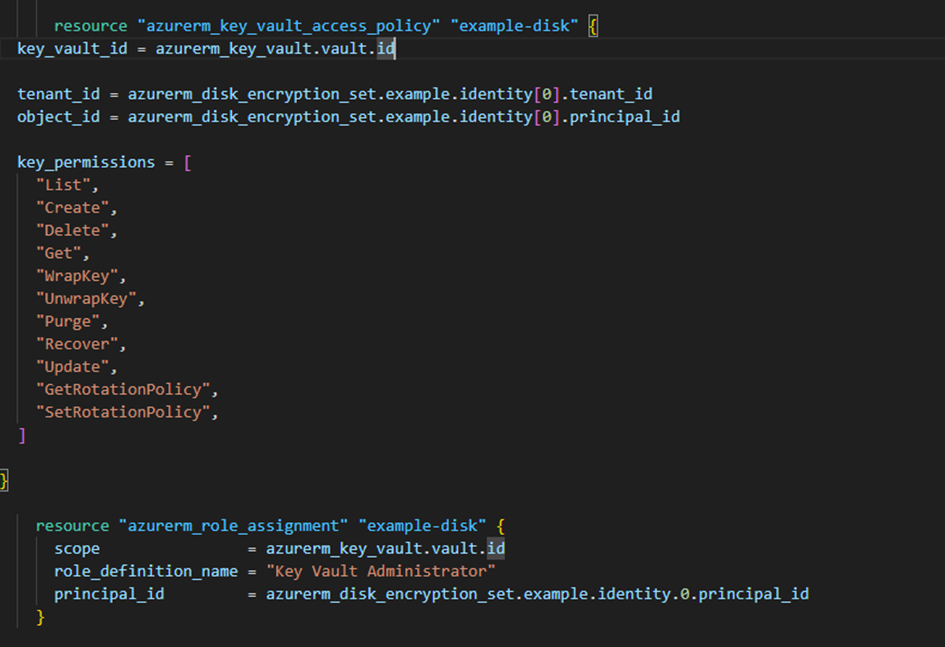
We will assign the disk encryption set identity to Key Vault so that it can read and write values.
Once that is done, we create our virtual machines:
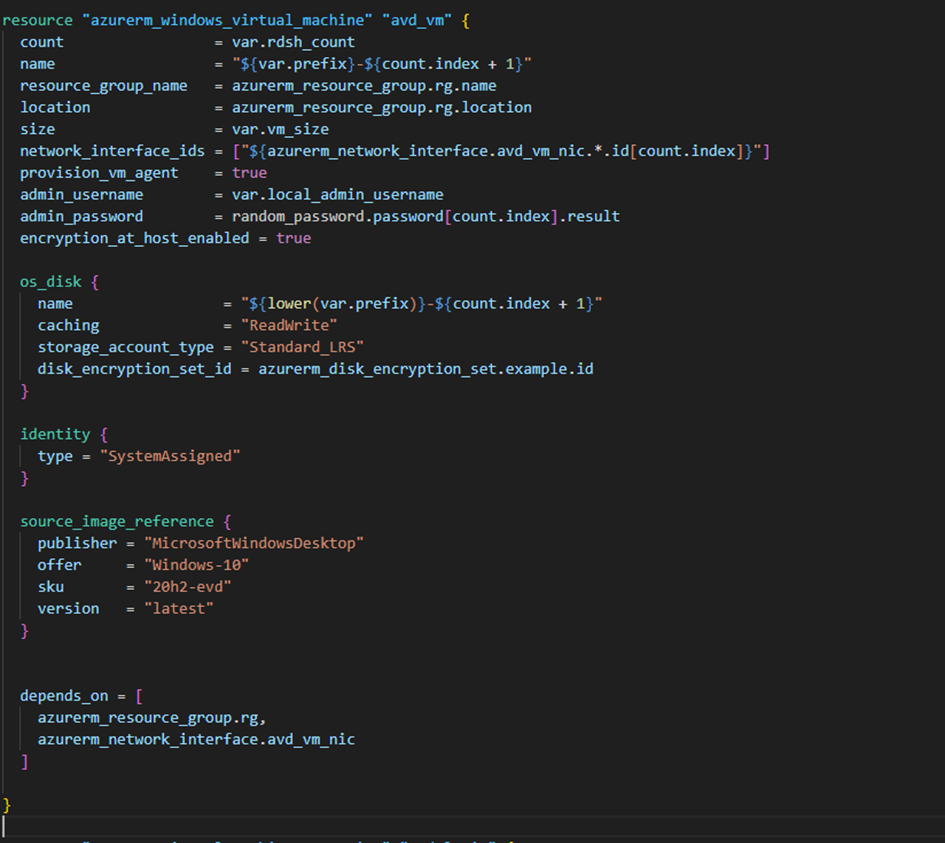
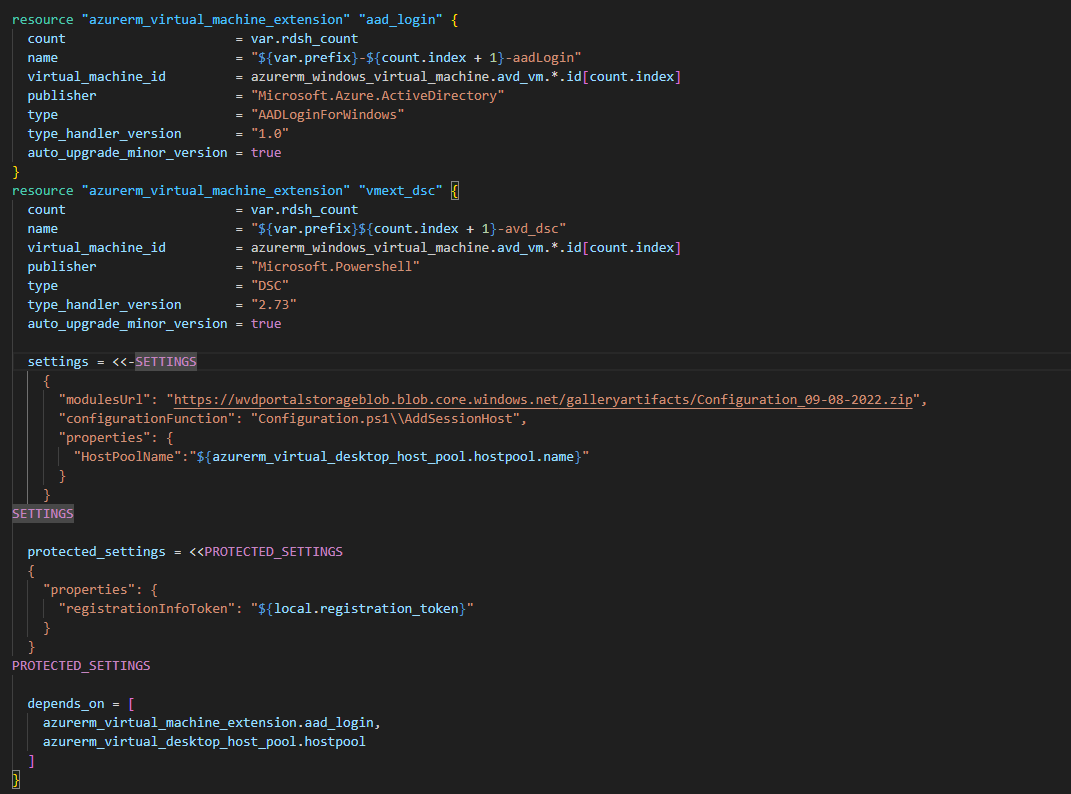
Finally, we link our AVD toAzure Active Directoryrather than to a specific/existing domain. We also associate our VMs with theAVD host pool.
To add a little complexity to our script, we create two groups that will have access rights to AVD VMs. These groups will be added to the RBAC roles "Virtual Machine Administrator Login" and "Virtual Machine User Login":

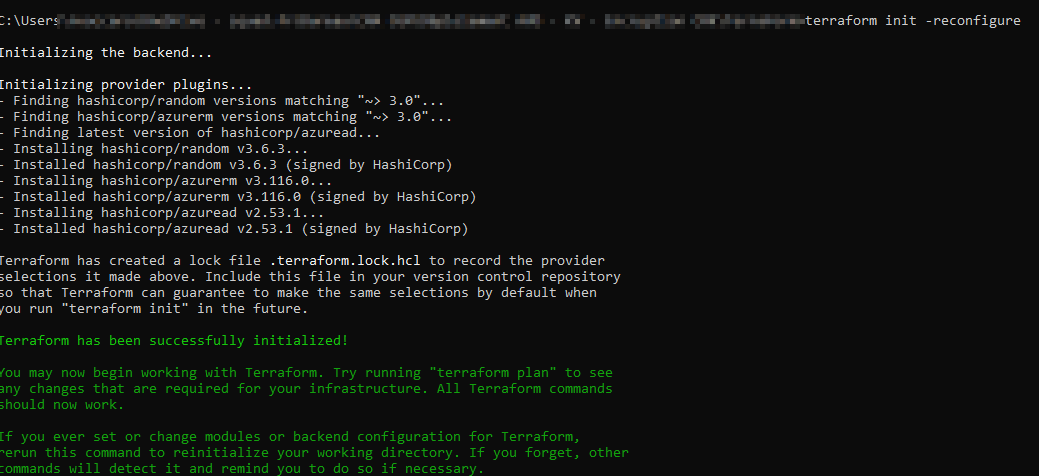
Once the script is complete, run it:
Run terraform init
Finally, run terraform apply -auto-approve or terraform apply to apply the changes:


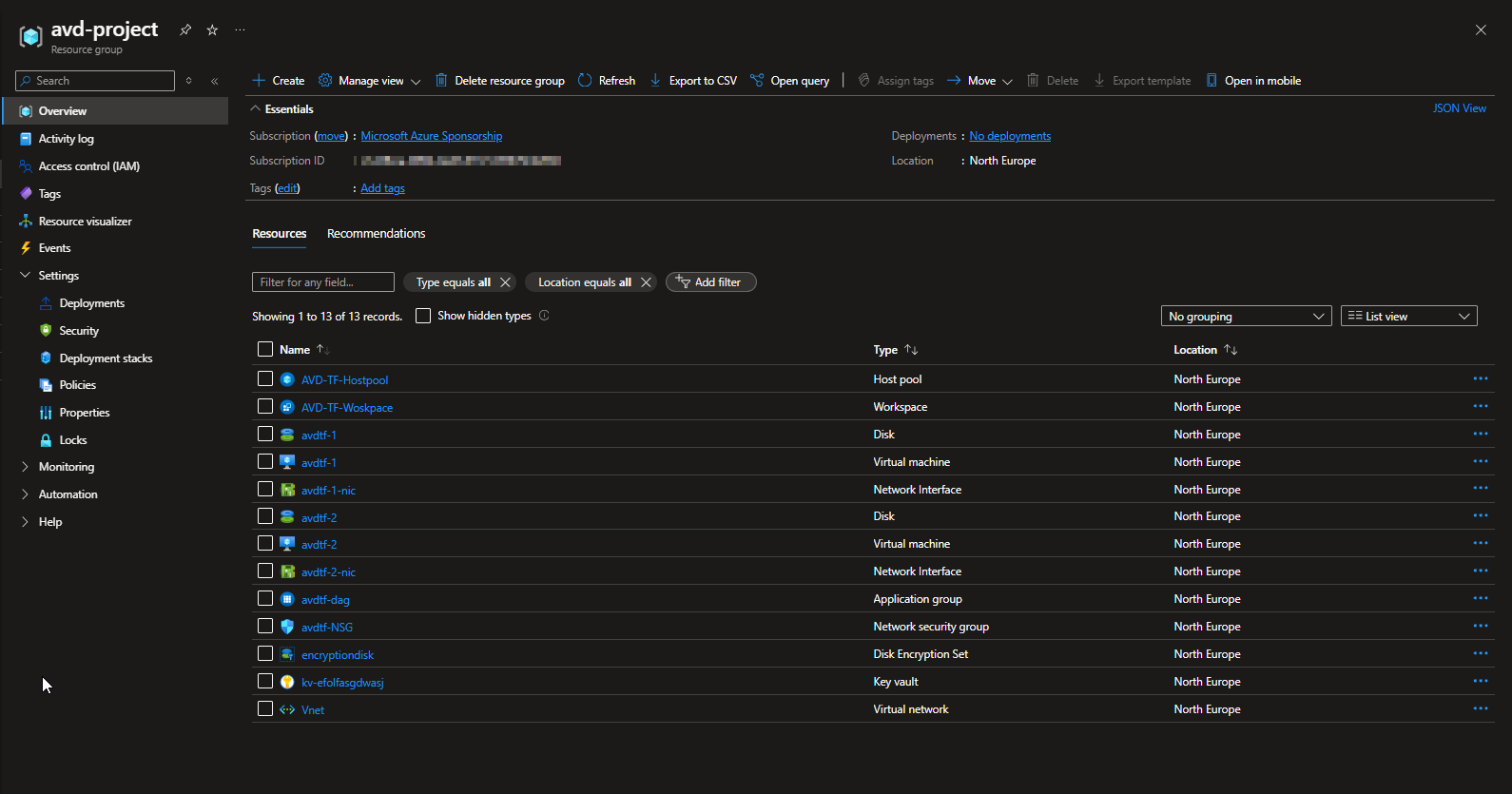
If we check on the Azure side, the resource group has been created, along with the entire infrastructure.
Our groups have been successfully created and assigned to RBAC. (Be sure to add the accounts that need access to AVD to these groups.)

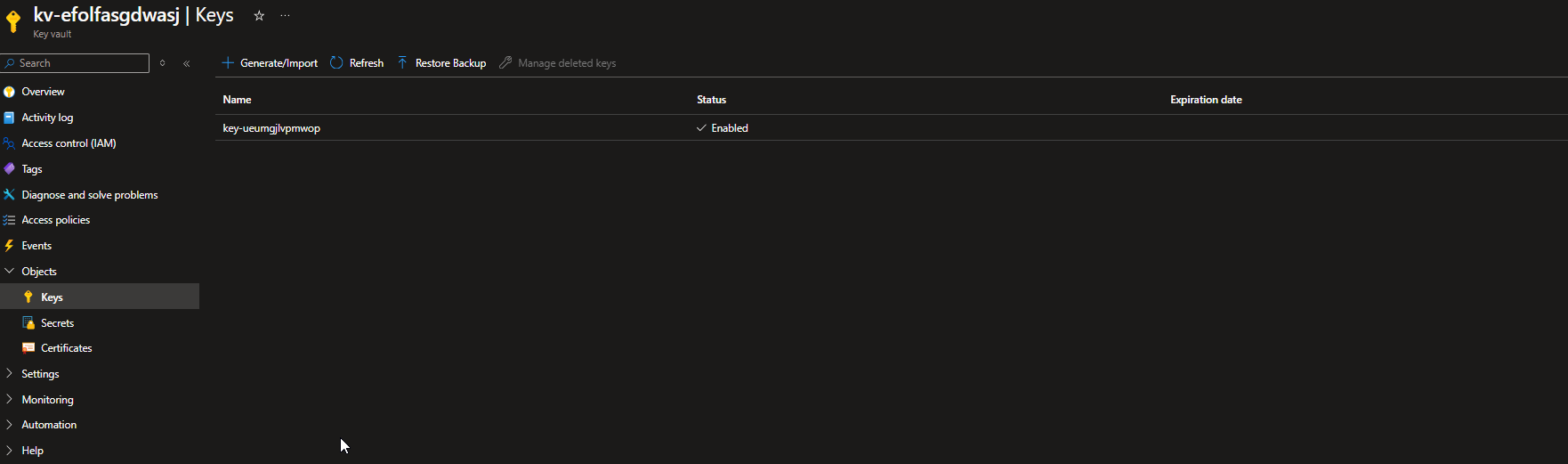
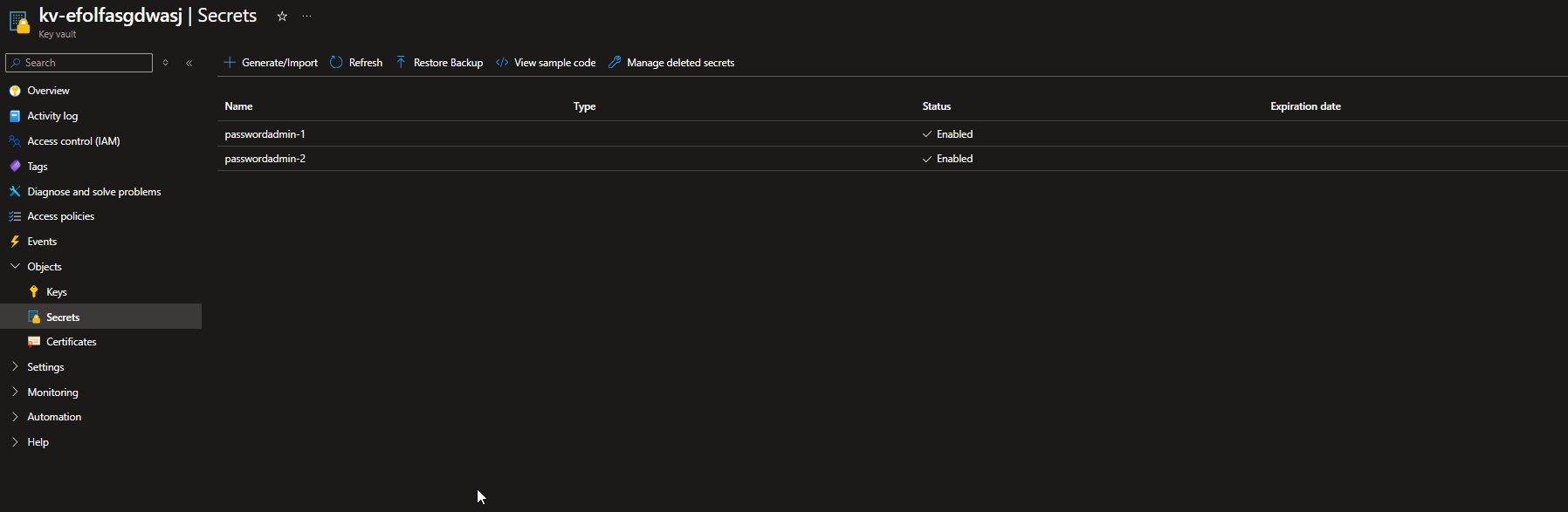
Our Key Vault does indeed contain the disk encryption key as well as the secrets of the local administrator accounts.
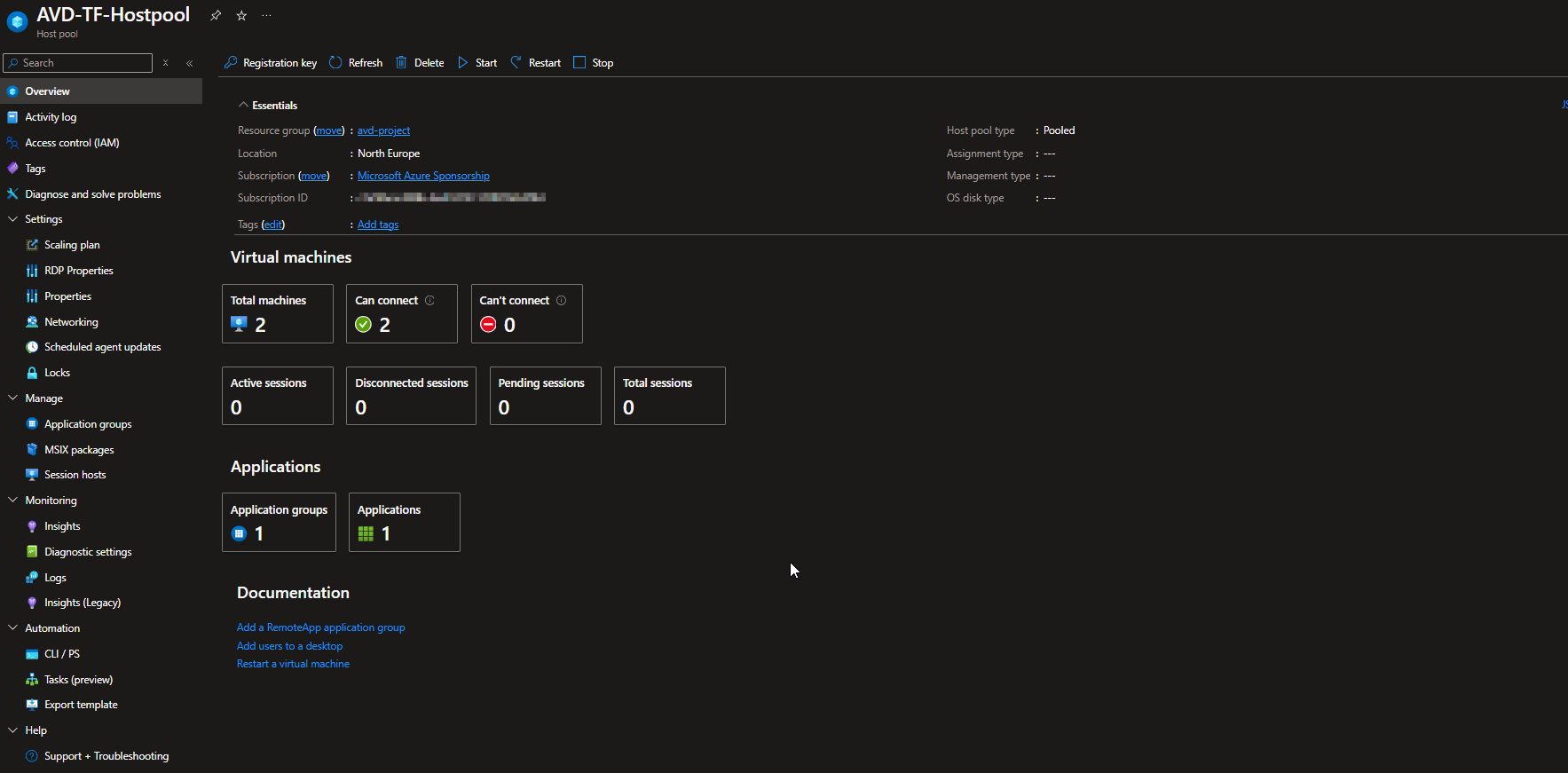
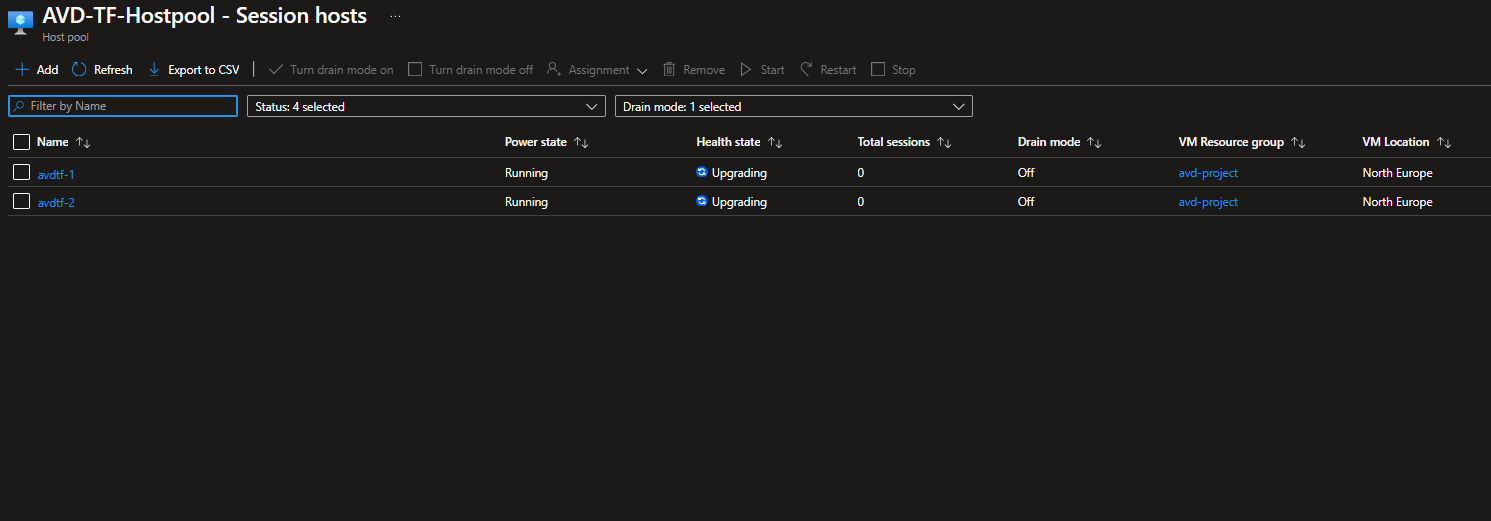
The host pool has been successfully created, and the virtual machines have been added.
Now, we will launch anRDWebclient or thethick client:
Connect to Azure Virtual Desktop with the Remote Desktop Web client – Azure | Microsoft Learn
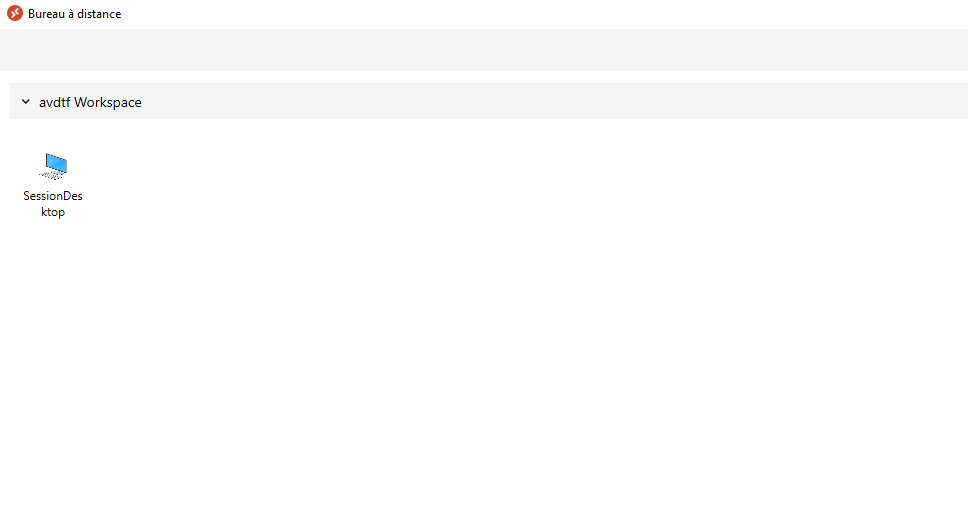
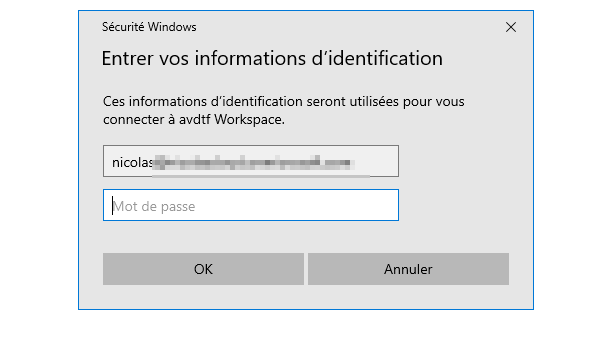
Launch it and authenticate with AAD (or Entra ID).
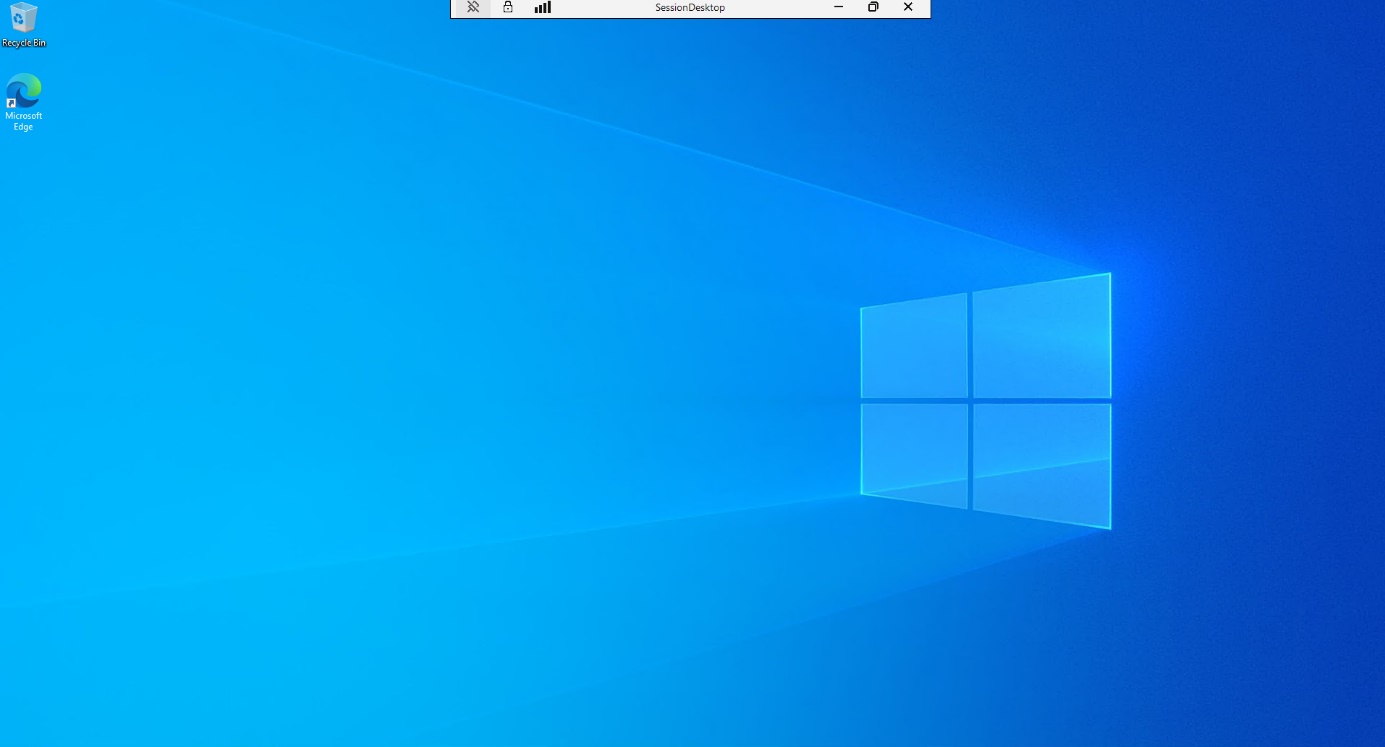
Welcome to your Azure Virtual Desktop machines!
As promised, you can find my entire script on my GitHub. Feel free to make changes. For my part, I will try to keep it as up to date as possible.
Link: technicalandcloud/Secure-AzureVirtualDesktop-deployment-with-Terraform (github.com).
Nicolas VACCARO
Cloud engineer
